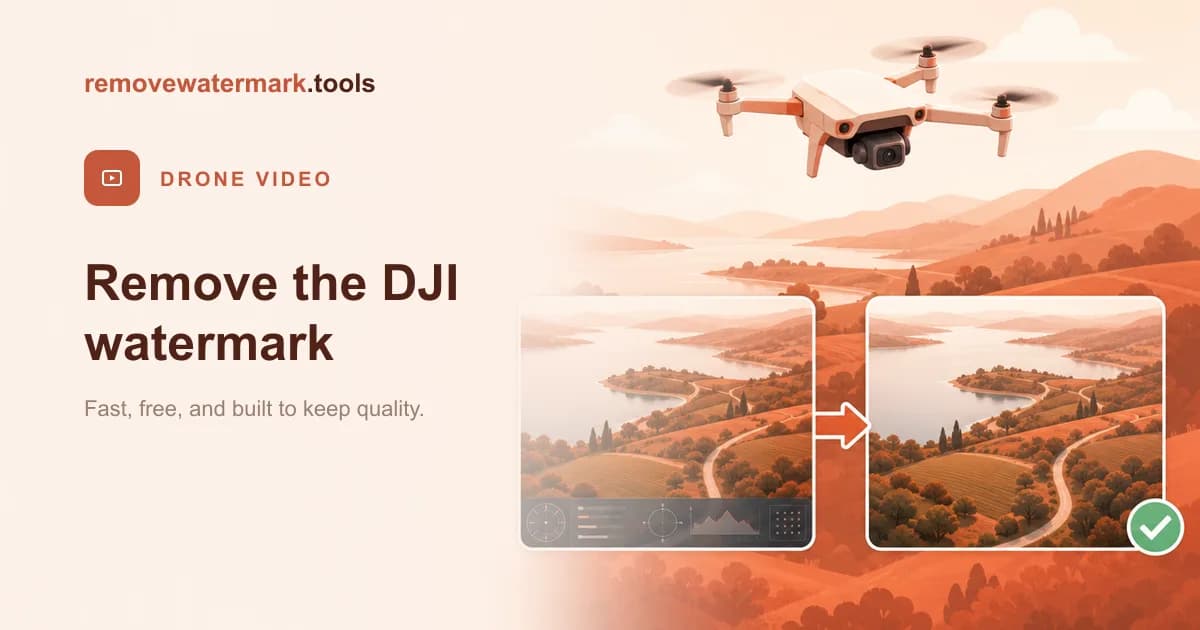
Quick answer: DJI footage usually carries one of two marks: a DJI logo from a Mimo or LightCut auto-edit template, or an on-screen flight-telemetry overlay. Both are controlled in settings, so the cleanest fix is to switch them off and re-export. If the mark is already in a finished file, drop it into our video watermark remover. Free for three videos a day, no signup. Only edit footage you filmed or are allowed to change.
DJI is a special case, because raw drone and Osmo footage is not watermarked. The mark you are seeing comes from somewhere specific, and identifying it tells you the right fix.
Which DJI mark do you have?
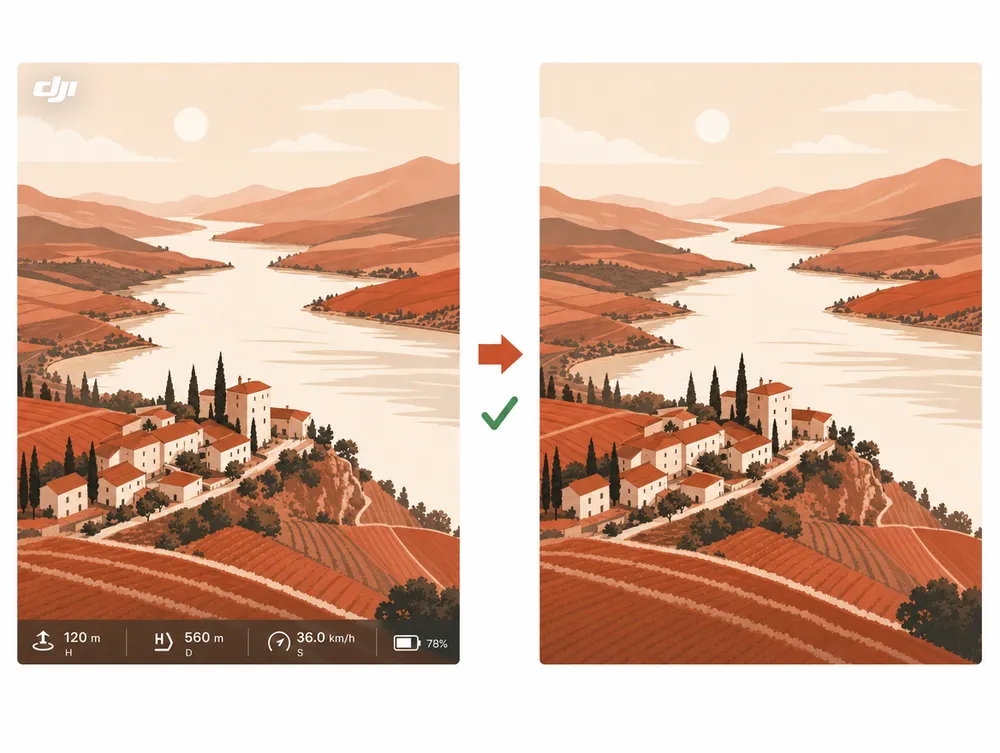
- A DJI logo in a corner: added by an auto-edit template in DJI Mimo or LightCut, applied when the app builds a quick edit for you.
- A bar of numbers and icons along an edge: on-screen flight telemetry (altitude, speed, battery), an optional camera overlay.
Each is removed differently, and in both cases the cleanest path is at the source.
Route 1: turn the mark off at the source
For a template DJI logo: open the project in DJI Mimo or LightCut, find the watermark or logo option in export settings, switch it off, and export again. The logo is added on export, so a clean re-export carries none.
For flight telemetry: the overlay is a recording setting. Turn off the on-screen data display in the DJI app or camera settings before you film. Future clips record clean.
Both keep full quality, because nothing is reconstructed.
Route 2: clear it from a finished file
If the footage already shows the mark and you cannot re-record, an AI inpainting tool can rebuild the area.
Walkthrough
- Open the tool. Go to the video watermark remover. The first three videos each day are free, no signup.
- Upload the video. Drop your MP4 or MOV, up to 500 MB.
- Confirm the area. A corner DJI logo is found automatically on most clips. For a telemetry bar, brush along the edge where the data sits.
- Run the cleanup. The AI works frame by frame and keeps the audio bit-identical.
- Download. The output matches your source codec and resolution.
Pro tip: A telemetry bar usually sits over sky or ground near a frame edge, which is calm, even background. That makes it one of the more forgiving overlays to rebuild from aerial footage.
Settings fix vs. AI removal
| Turn off in DJI settings | AI removal from the file | |
|---|---|---|
| You need | The chance to re-export or re-record. | Only the finished video. |
| Result quality | Full quality. Nothing is reconstructed. | Usually clean; edges and corners are easy cases. |
| Cost | Free. | Free for three videos a day. |
| Best when | You can re-export the edit or re-film. | The footage is irreplaceable or already shared. |
Will removing the mark reduce quality?
Turning it off at the source keeps full quality. The AI route reconstructs only the covered pixels; the rest of the frame keeps its resolution and the audio is preserved bit-identical. Edge and corner marks over sky or ground are among the cleanest removals, but you should not expect flawless recovery on every clip.
Stay within the rules
Only remove DJI marks from footage you filmed yourself or are allowed to edit. Your own template logo and telemetry are your own settings on your own video.
Removing marks from someone else's footage to reuse or reupload it as your own can breach copyright and platform rules. The tool is for finishing your own work, not for taking credit for others'.
Final recommendation
Identify the mark first. If it is a template logo or telemetry overlay you can switch off, re-export or re-record for a flawless result. If the footage is irreplaceable, the calm backgrounds in aerial video make AI removal clean: drop it into the video watermark remover.