Quick answer: After Effects removes a watermark with Content-Aware Fill: mask the mark, let it rebuild the area from nearby frames, then patch any flicker with the Clone Stamp. It is powerful but slow, and needs a paid licence. For a simple static watermark, our video watermark remover does the same job in one pass, free for three videos a day. Only edit footage you own or are allowed to change.
After Effects does not add a watermark of its own. People search for this because After Effects is one of the most capable tools for *removing* a watermark from footage. This guide covers the real workflow, then shows when it is overkill.
The After Effects workflow
Content-Aware Fill is the core feature. It studies the frames around your masked area and synthesises a fill, much like an AI inpainting tool, but with manual control.
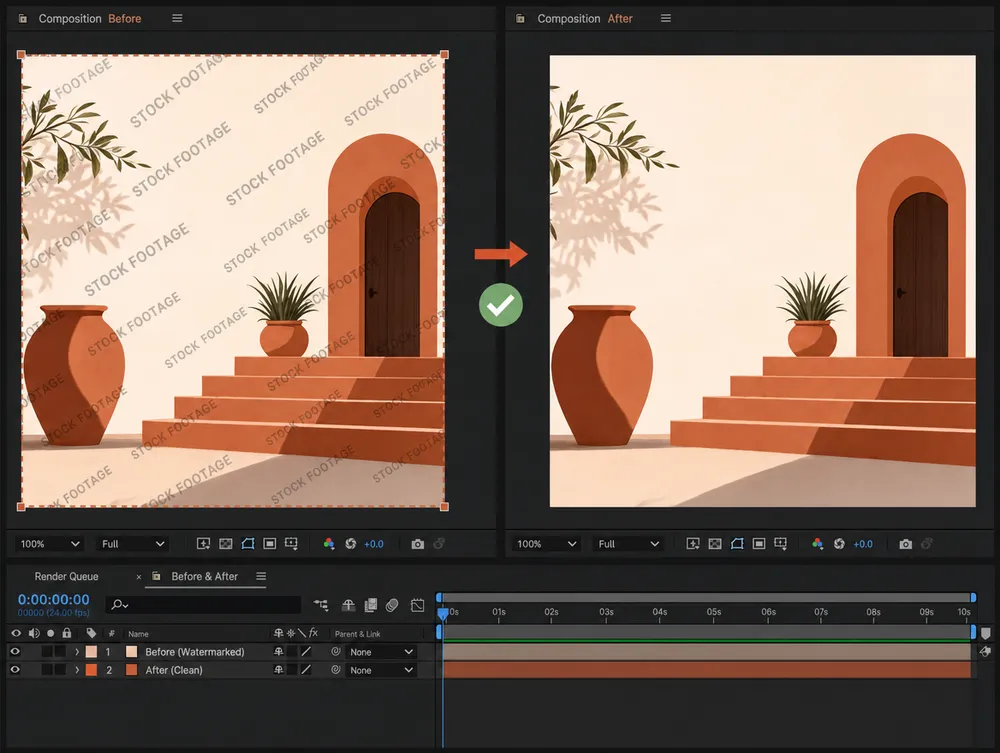
- Import the clip into After Effects and drop it on a new composition.
- Draw a mask around the watermark on the footage layer. Keep a small margin around the mark.
- Open the Content-Aware Fill panel. Set the fill target to your mask's alpha and choose a fill method.
- Generate the fill layer. After Effects analyses surrounding frames and creates a new fill layer. This step can take a while on long or high-resolution clips.
- Refine with the Clone Stamp. On frames where the fill flickers or smears, paint over the mark using a clean source frame as the reference.
- Render the comp at your original resolution.
This gives you frame-level control, which is exactly what a hard case needs.
Where After Effects shines, and where it struggles
Content-Aware Fill is excellent on a static watermark over a steady or slowly changing background. The surrounding frames hold the answer, and the result can be invisible.
It struggles when:
- The watermark sits over a moving subject or a face.
- The background has fine, non-repeating detail.
- There is a fast camera move, so no nearby frame matches.
In those cases you spend most of your time in the Clone Stamp, blending by hand, frame by frame.
Pro tip: The single biggest factor is the background behind the mark, not the mark itself. A logo over open sky clears in minutes; the same logo over a textured crowd can take an hour of cloning.
After Effects vs. a dedicated AI tool
| After Effects | AI video watermark remover | |
|---|---|---|
| Setup | Mask, fill panel, render queue. | Upload, confirm the area, run. |
| Speed | Minutes to hours, plus render time. | One pass, roughly the length of the clip. |
| Control | Full, frame-by-frame. | Automatic, with a manual brush for tricky marks. |
| Cost | A paid Creative Cloud licence. | Free for three videos a day. |
| Best for | Difficult moving marks needing hand work. | Simple static watermarks and quick jobs. |
When to skip After Effects
If your watermark is a static logo over a calm background, the After Effects setup is more work than the job needs. A dedicated AI tool runs the same kind of reconstruction automatically. Upload the clip, confirm the area, and download a clean file, with no masking and no render queue.
Keep After Effects for the hard cases: a watermark drifting across a face, or fine detail that needs manual cloning.
Stay within the rules
The tool does not change the rule. Only remove a watermark from footage you own or are allowed to edit, whether you reach for After Effects or an AI remover.
Stripping a mark from someone else's video to reuse or reupload it as your own can breach copyright and platform rules. These methods are for finishing your own work.
Final recommendation
For a difficult moving watermark you want full control over, After Effects with Content-Aware Fill and the Clone Stamp is the professional answer. For a simple static mark, save the time and run it through the video watermark remover instead. The same choice applies to any in-app editor logo, such as the Filmora watermark.