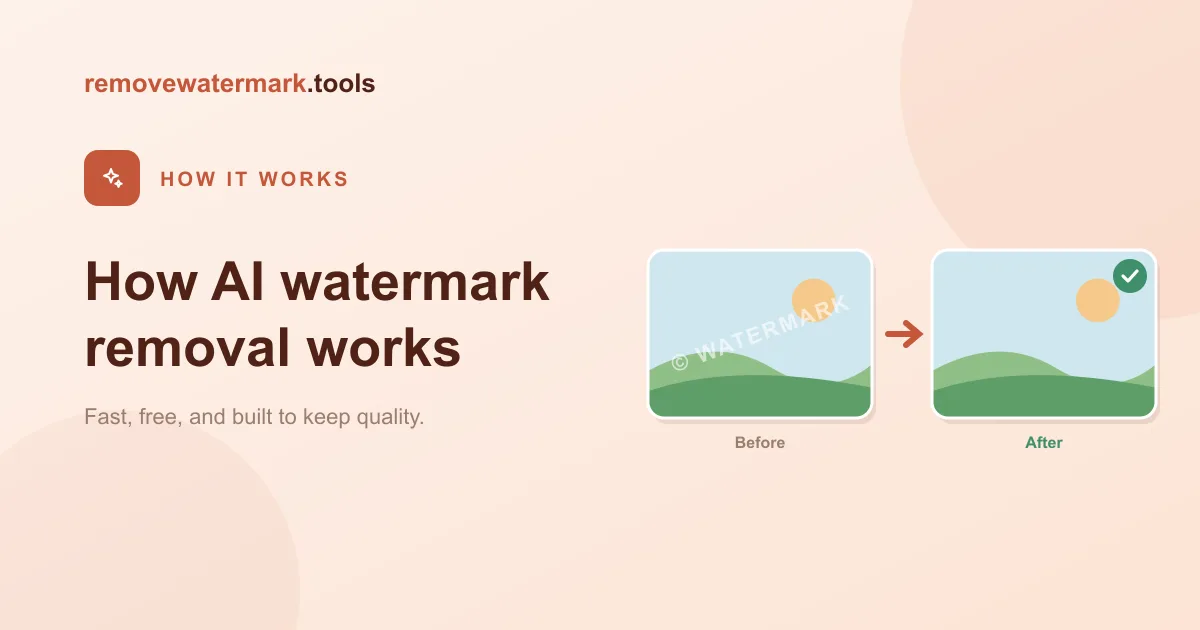
Quick answer: AI does not erase a watermark. It rebuilds what was behind it. The model masks the marked pixels, reads the surrounding texture, and generates new pixels that continue the background. That is why it beats blurring or cropping. Use it only on content you own or are allowed to edit.
When you remove a watermark with AI, it can feel like magic: the logo is there, then it is gone, and the photo looks untouched. There is no magic. There is a fairly specific process happening underneath, and once you understand it you make better choices about source files, selections, and what to expect.
This guide explains how AI watermark removal actually works, why it is different from blurring or cropping, and where it still struggles.
Only edit content you own or have permission to change. Everything below assumes you have that right.
Three ways to deal with a watermark
There are really only three things any tool can do with a watermark.
- Crop it out. Cut away the part of the image or frame that contains the mark.
- Cover or blur it. Paint a box, a blur, or a sticker over the mark so you cannot read it.
- Rebuild what was behind it. Reconstruct the pixels the watermark was sitting on top of.
Crop and blur are old, manual ideas. They work on any editor and need no AI at all. The third option, rebuilding, is what modern AI tools do, and it is the only one that aims to make the watermark look like it was never there.
The difference between the three is not subtle once you see a result side by side. Crop loses part of your image. Blur leaves an obvious patch. Rebuild leaves a clean photo.
Why crop and blur fall short
Cropping is the bluntest fix. If the watermark sits in a corner and you do not need that corner, cropping is fine. But most watermarks are placed exactly where cropping hurts most: across the centre, over a subject, or tiled across the whole frame. You cannot crop a centred logo without throwing away the picture.
Blurring and covering are worse in a different way. They do not remove the watermark; they replace it with a smear or a block. Your eye reads that patch instantly, because it does not match the texture around it. A blurred rectangle over a sky still looks like a blurred rectangle, not like sky.
There is a deeper problem too. Blur and cover treat the watermark as a thing to hide. They never ask what was *underneath*. So the information that was behind the mark (the continuation of a wall, a face, a horizon) is simply gone, traded for a smudge.
AI inpainting asks the opposite question: what belongs here?
What inpainting is, in plain terms
Inpainting is the technique behind AI watermark removal. The word comes from art restoration, where a conservator fills a damaged patch of a painting so it blends with the rest.
In software, inpainting means filling a marked region with new pixels that continue the surrounding image. The model has learned, from a very large number of images, what plausibly follows from a given pattern of pixels. Show it the edge of a brick wall and a gap, and it can extend the bricks. Show it a stretch of sky with a logo in the middle, and it can continue the gradient and clouds.
It is not copying nearby pixels and pasting them over the mark. That is the old clone-stamp trick, and it repeats obvious patterns. Inpainting *generates* pixels that fit. On a plain background the result is often indistinguishable from the original. On complex detail it is an informed estimate, which is an important honesty: the tool is reconstructing, not recovering. The original pixels are gone; what you get back is a plausible stand-in.
That distinction matters for your expectations. You should not assume perfect recovery on a busy, detailed area. You should expect a clean, believable rebuild on most ordinary backgrounds.
The pipeline, step by step
Here is what happens between your upload and your download.
- Detect the watermark. The model scans the image, or each video frame, and locates the watermark pixels: a logo, a text overlay, a repeated stamp. From this it builds a rough outline of what to fix.
- Build a mask. That outline becomes a mask: the exact region the tool is allowed to change. Everything outside the mask is left completely untouched. A tighter mask gives a cleaner result, which is why a quick manual brush helps on awkward marks.
- Analyze the surrounding context. Before generating anything, the model reads the pixels around the mask (colour, texture, edges, lighting direction). This is how it works out what should plausibly sit behind the mark.
- Generate the missing pixels. This is the inpainting step. Instead of smearing nearby colour inward, the model synthesises new pixels that continue the surrounding structure: sky, skin, fabric, foliage, or the background behind text.
- Blend and export. The rebuilt region is blended back into the image at the original resolution, with edges feathered so there is no visible seam. The areas you never selected come back bit-for-bit unchanged.
Each step affects the final quality. A weak detection or a loose mask makes the generate step harder. A sharp source makes every step easier.
Images vs video: per-frame tracking
A photo gives the model one frame to repair. A video gives it hundreds, and the watermark can move.
For a static corner logo, video is actually the easy case. The pixels behind the logo barely change across the clip, and the model can borrow detail from frames where that area is briefly clean.
Moving and animated marks are harder. A rotating username or a drifting stock stamp does not sit in one box, so the tool cannot treat it as a fixed region. Instead, detection runs on every frame and the mask follows the watermark as it moves. The area is then rebuilt frame by frame.
Motion can help as much as it hurts. When a watermark drifts across a steady background, the frames on either side often reveal exactly what belongs underneath. The model uses that. To clean a clip end to end, open the video watermark remover and let detection track the mark per frame.
What makes it hard
Inpainting is strong on plain, predictable surfaces and weak where the eye is unforgiving.
- Faces. We are wired to spot a wrong face instantly. A rebuilt eye or mouth that is even slightly off reads as fake.
- Hands and fingers. Lots of edges, joints, and overlap in a small space. Easy to bend.
- Small text. The model rebuilds the look of text but cannot know the exact letters that were there, so reconstructed text often turns to gibberish.
- Large or tiled watermarks. The bigger the masked area, the less surrounding context the model has to work from, so its guess gets less certain.
None of these are reasons to avoid AI. They are reasons to keep the selection tight and to inspect the result. A small manual touch-up on a face or a corner usually finishes the job that AI got 90% right.
| Method | What it does | Result | Best for |
|---|---|---|---|
| Crop | Cuts away the area with the mark | Loses part of the image | Marks in a corner you do not need |
| Blur / cover | Hides the mark behind a smudge or box | Obvious patch that does not match | Quick masking when looks do not matter |
| AI inpainting | Rebuilds the background behind the mark | Clean image, often near-invisible | Most real photos and videos you own |
How to get the cleanest result
A few habits make the difference between a flawless rebuild and a soft patch.
- Start with the highest-resolution source you have. Detection and reconstruction both rely on sharp edges. A re-saved screenshot or a downscaled copy loses the detail the model needs.
- Keep the selection tight. Mask the watermark, not a generous box around it. A smaller mask leaves more real context for the model and shrinks the area it has to invent.
- Inspect at full size. Zoom to 100% and look for soft blur, repeated texture, or broken edges, especially near faces and straight lines.
- Rerun a small area instead of the whole thing. If one spot looks off, fix just that spot rather than reprocessing the entire image.
Pro tip: work on a copy and keep the untouched original. It lets you compare the rebuild against the truth and start over cleanly if a pass goes wrong.
For a deeper comparison of where AI wins and where hand editing wins, see AI watermark removal vs manual editing. For a full photo walkthrough, see how to remove a watermark from a photo without ruining quality.
Stay within the rules
Only remove watermarks from content you own or are allowed to edit. That covers your own photos and videos, licensed files, and previews you have permission to clean up.
Using inpainting to strip a mark from someone else's work and pass it off as your own can break copyright and platform rules. The technique is for tidying your own content, not for taking credit for others'.
Final recommendation
AI watermark removal is not erasing and it is not blurring. It is reconstruction. The tool masks the mark, studies what surrounds it, and generates new pixels that continue the background. Understanding that one idea explains everything else: why a sharp source matters, why a tight selection helps, and why faces and text are the hard cases.
When your file is ready, try the image watermark remover or the video watermark remover, and inspect the result at full size before you export. You can also start from the AI watermark remover.