Quick answer: The easiest fix is inside InShot itself: tap the InShot sticker and remove it, usually free after a short ad, before you export. If the watermark is already baked into a finished video, drop the file into our video watermark remover and the AI rebuilds the covered area. Free for three videos a day, no signup. Only edit videos you made or are allowed to change.
InShot is one of the friendlier editors here. Its watermark is a removable sticker on the timeline, not a stamp forced onto every export. That means the cleanest fix often costs nothing and takes one tap, as long as you act before you export.
This guide covers both situations: removing the sticker while you still have the project open, and clearing it from a video that is already finished.
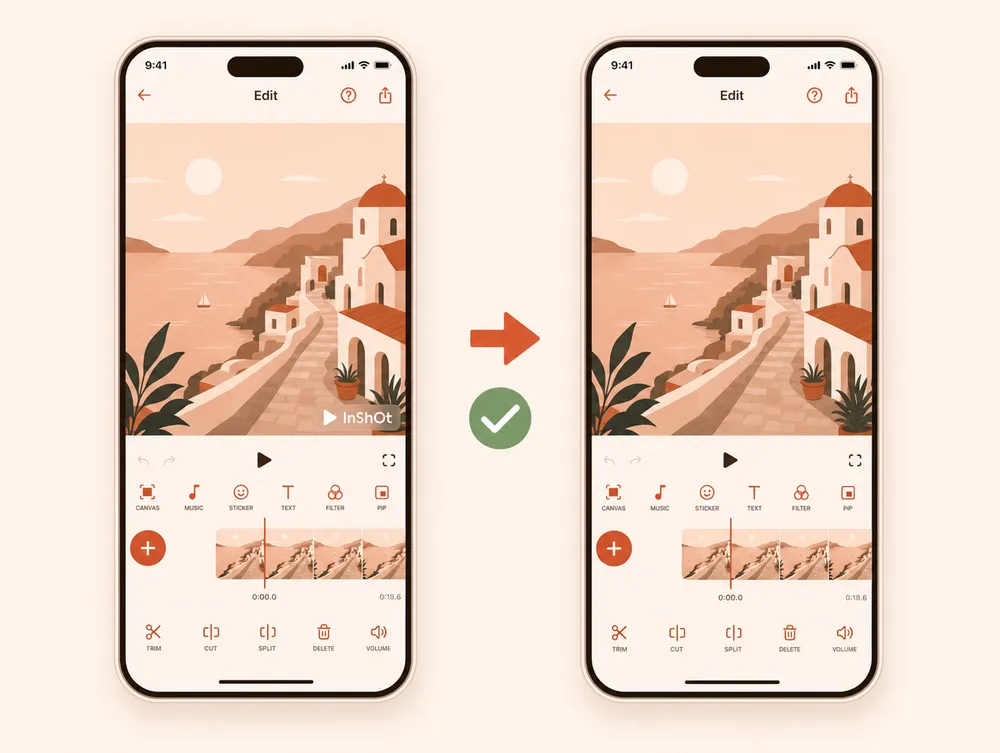
Route 1: remove the sticker inside InShot (before export)
While your project is open in InShot, the watermark is a normal element you can delete.
- Open your project in the InShot app on your iPhone or Android phone.
- Tap the InShot sticker where it appears on the preview or timeline.
- Choose to remove it. InShot typically offers a free removal in exchange for watching a short ad, or a permanent removal with an InShot Pro subscription.
- Export as usual. Your finished video comes out clean, at full quality.
Because nothing is reconstructed, this is the best possible result. If you have not exported yet, stop here.
Route 2: clear it from an exported file (with AI)
Once you have exported, the sticker is baked into the pixels and InShot can no longer remove it. At that point the file is just a video with a static mark, and an AI inpainting tool can rebuild the area behind it.
This follows our general video watermark guide, with notes specific to where InShot places its mark.
Walkthrough
- Open the tool. Go to the video watermark remover. The first three videos each day are free, no signup.
- Upload the video. Drop your MP4 or MOV, up to 500 MB.
- Confirm the area. The InShot mark usually sits near a corner or on an end-card. Auto-detection handles most placements; brush over anything it misses.
- Run the cleanup. The AI works frame by frame and keeps the audio bit-identical.
- Download. The output matches your source codec and resolution.
Pro tip: If your watermark only appears on the last few seconds as an end-card, you may not need AI at all. Trimming those seconds in any editor is faster and lossless. Use AI only when the mark runs through footage you need to keep.
Where does the InShot watermark appear?
InShot's placement varies more than a desktop editor's, so check your clip first.
- Corner sticker: an "InShot" mark, often animated, near a bottom corner for part or all of the clip.
- End-card: a short closing frame with the logo on a plain background. The easiest case, and usually trimmable.
- Custom position: if you moved the sticker while editing, it can sit anywhere. Note where it is before you upload.
A mark over a plain or slow background cleans up almost invisibly. A mark over a moving subject is the harder case.
In-app removal vs. AI removal
| Remove inside InShot | AI removal from the file | |
|---|---|---|
| You need | The project still open in InShot, before export. | Only the finished exported video. |
| Result quality | Full quality. Nothing is reconstructed. | Usually clean; a soft patch is possible over detail. |
| Cost | Free after a short ad, or InShot Pro. | Free for three videos a day. |
| Best when | You have not exported yet. | The video is already finished or came from someone else. |
Will removing the watermark reduce quality?
Route 1 keeps full quality, because the sticker is removed before anything is rendered.
Route 2 rebuilds the covered pixels. Over a calm background you will rarely notice. Over fine detail or fast motion, a soft patch can appear. The rest of the frame keeps its resolution and the audio is preserved bit-identical. You should not expect flawless recovery on every clip.
Stay within the rules
Only remove the InShot watermark from a video you made yourself or are allowed to edit. The mark is the free plan's credit on your own work, and clearing it is fine.
Stripping it from someone else's video to reuse or reupload it as your own can breach copyright and platform rules. The tool is for finishing your own edits, not for taking credit for others'.
Final recommendation
If you have not exported yet, remove the sticker inside InShot. It is free and lossless, and nothing beats it.
If the video is already finished, drop it into the video watermark remover. The same approach handles other editor marks, including the CapCut watermark.