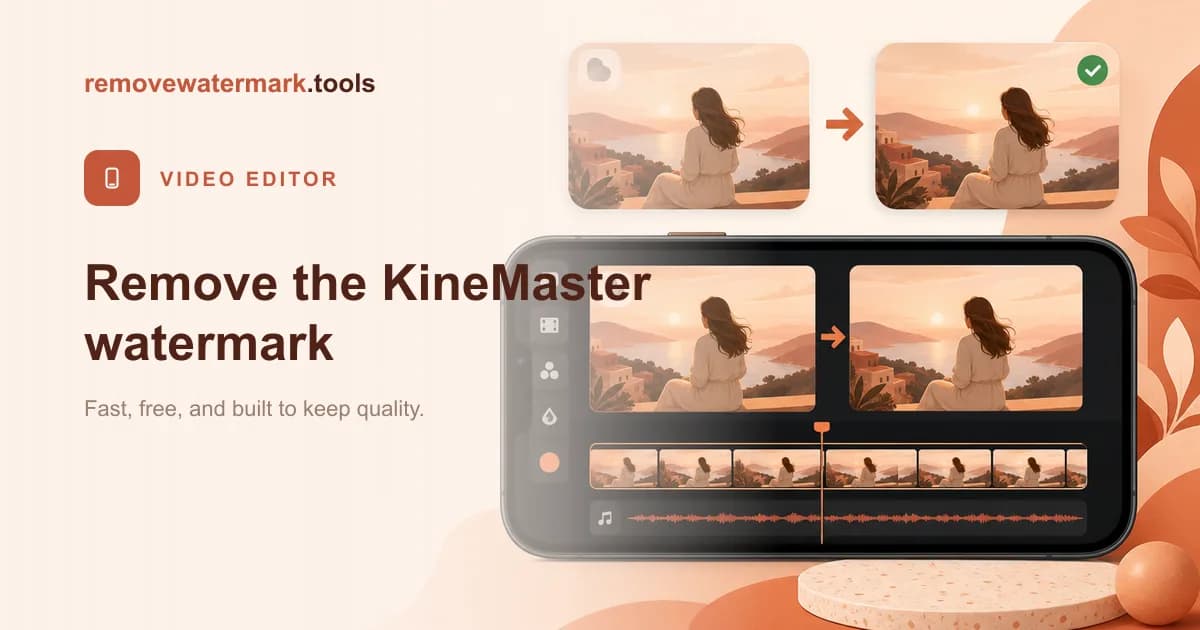
Quick answer: If you still have the KineMaster project, the cleanest fix is to subscribe to KineMaster Premium and re-export without the corner logo. If you only have the finished video, drop it into our video watermark remover and the AI rebuilds the top corner. Free for three videos a day, no signup. Only edit videos you made or are allowed to change.
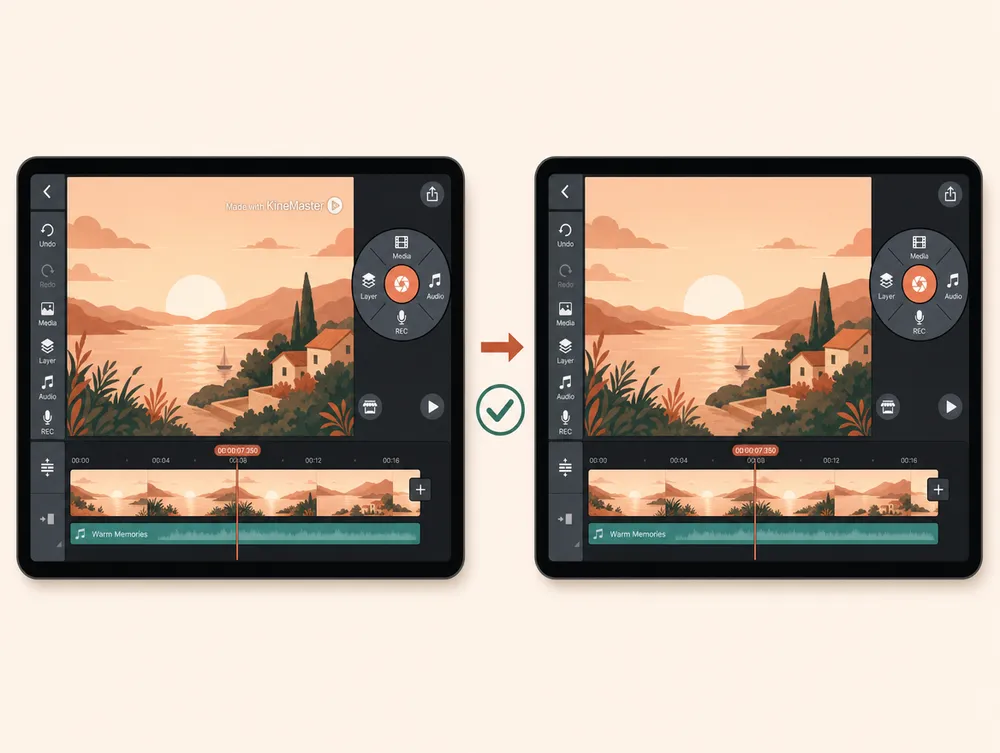
KineMaster stamps a Made with KineMaster logo in the top corner of every video exported on the free plan. Unlike a centred mark, a corner logo is the easy case to clear, because the background behind it usually stays steady and nearby frames reveal what belongs underneath.
Which route fits depends on whether you still have the editable project or only the finished clip.
Route 1: re-export with Premium (the cleanest result)
The corner logo is added at export time, not while you edit. The original frames behind it still exist inside the project.
- Open the project in KineMaster on the device where you built it.
- Subscribe to KineMaster Premium. Premium removes the export watermark.
- Re-export at your original resolution and frame rate.
Nothing is reconstructed, so the result is pixel-perfect. When the project is available and you are willing to subscribe, this beats every other method. This is the same logic as a licensed Filmora re-export.
Route 2: rebuild the corner with AI (when you only have the file)
When the export is all you have, an AI inpainting tool reconstructs the corner from the surrounding frames. A static top-corner logo over a calm background often cleans up almost invisibly.
Walkthrough
- Open the tool. Go to the video watermark remover. The first three videos each day are free, no signup.
- Upload the video. Drop your MP4 or MOV, up to 500 MB.
- Confirm the corner. Auto-detection finds the top-corner logo on most clips; brush over it if your export placed it elsewhere.
- Run the cleanup. The AI works frame by frame and keeps the audio bit-identical.
- Download. The output matches your source codec and resolution.
Pro tip: Because the KineMaster mark is in a corner, it rarely sits over your main subject. That makes it one of the most forgiving editor watermarks to remove from a finished file.
Premium re-export vs. AI removal
| Re-export with Premium | AI removal from the file | |
|---|---|---|
| You need | The project plus a Premium subscription. | Only the finished video. |
| Result quality | Perfect. Nothing is reconstructed. | Usually clean; the corner is an easy case. |
| Cost | A KineMaster Premium subscription. | Free for three videos a day. |
| Best when | You still own the editable project. | The project is gone or the clip came from someone else. |
Will removing the watermark reduce quality?
With a Premium re-export, no. The frame was never covered.
With AI, the corner is a reconstruction, but corner marks are forgiving because they rarely overlap the subject. The rest of the frame keeps its resolution and the audio is preserved bit-identical. You should not expect flawless recovery on every clip, but a top-corner logo is about as clean as video removal gets.
Stay within the rules
Only clear the KineMaster watermark from a video you made yourself or are allowed to edit. Your own exports are fair game; the logo is the free plan's upgrade prompt.
Removing it from someone else's video to reuse or reupload it as your own can breach copyright and platform rules. The tool is for finishing your own work, not for taking credit for others'.
Final recommendation
If you still have the project, subscribe to Premium and re-export for a flawless result. If you only have the file, the corner placement makes AI removal clean and quick: drop it into the video watermark remover. The same approach handles the CapCut watermark and other in-app logos.