Quick answer: VN lets you switch off its ending logo for free in settings, so the cleanest fix is to disable it and re-export. If the mark is already baked into a finished video, drop the file into our video watermark remover, or simply trim it when it only appears as an end-card. Free for three videos a day, no signup. Only edit videos you made or are allowed to change.
VN Video Editor (VlogNow) is one of the more generous editors here because it does not force a watermark across your footage. It adds a default ending logo card that you are allowed to turn off without paying, which makes a clean export the simplest case on this list.
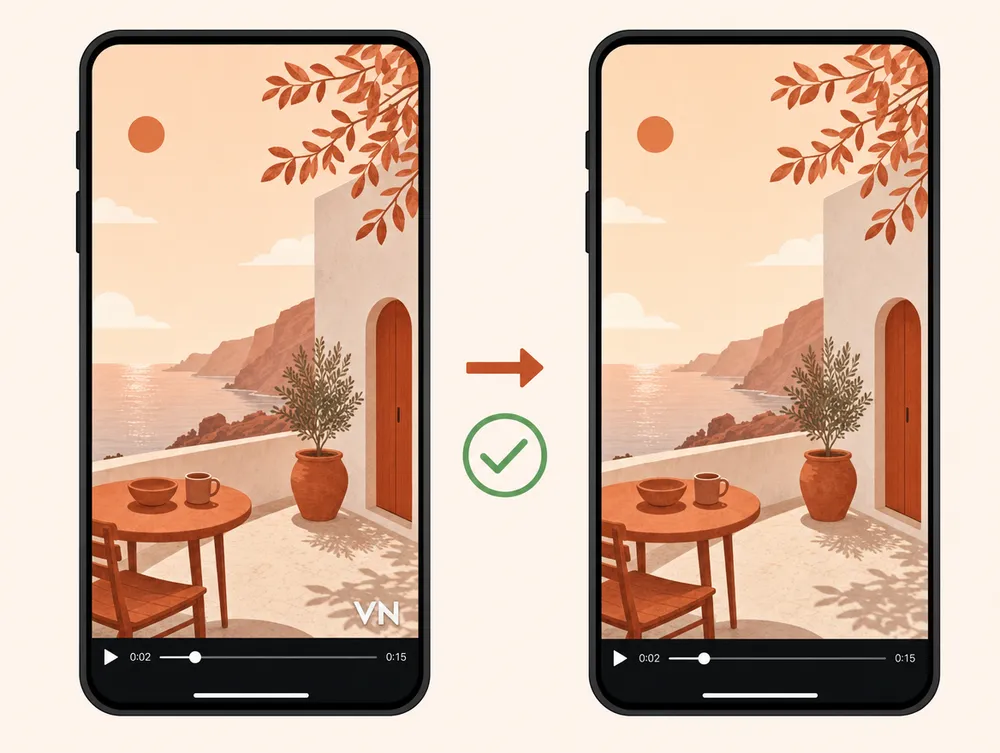
Route 1: switch off the ending logo in VN (free)
While your project is still in VN, the watermark is a setting rather than a fixed stamp baked into the video.
- Open VN on your phone or desktop.
- Go to settings and find the default ending or VN logo option.
- Turn it off. VN allows this for free.
- Re-export at your original resolution. The new file carries no VN logo.
Because nothing is reconstructed, this gives the best result and costs nothing. The same free-toggle approach applies before you export in InShot too.
Route 2: clear it from a finished file
If you already exported with the logo, you have two options depending on where it sits.
The difference matters because a settings change preserves the original export, while AI repair has to estimate the pixels hidden under the mark. That is why the settings route should be your first choice whenever you still have the editable project.
If the logo is only the closing end-card: trim those seconds in any editor. This is lossless, instant, and needs no AI at all.
If the logo runs through footage you need to keep: use an AI inpainting tool to rebuild the covered area frame by frame.
Walkthrough
- Open the tool. Go to the video watermark remover. The first three videos each day are free, no signup.
- Upload the video. Drop your MP4 or MOV, up to 500 MB.
- Confirm the area. Auto-detection handles most placements; brush over anything it misses.
- Run the cleanup. The AI works frame by frame and keeps the audio bit-identical.
- Download. The output matches your source codec and resolution.
Pro tip: Always check whether your VN watermark is just an end-card before reaching for AI. Trimming is faster and keeps every pixel of the footage you keep.
Settings toggle vs. AI removal
| Turn off in VN settings | AI removal from the file | |
|---|---|---|
| You need | The project still in VN, before export. | Only the finished video. |
| Result quality | Full quality. Nothing is reconstructed. | Usually clean; a soft patch is possible over detail. |
| Cost | Free. | Free for three videos a day. |
| Best when | You have not exported the final cut yet. | The video is already finished or came from someone else. |
Will removing the watermark reduce quality?
Disabling the logo in settings keeps full quality. Trimming an end-card is also lossless. Only the AI route reconstructs pixels, and then only in the patched area; the rest of the frame and the audio are untouched. You should not expect flawless recovery on every clip where AI is needed.
Stay within the rules
Only remove the VN watermark from a video you made yourself or are allowed to edit. The ending logo is a credit on your own work, and clearing it is fine.
Removing it from someone else's video to reuse or reupload it as your own can breach copyright and platform rules. The tool is for finishing your own edits, not for taking credit for others'.
Final recommendation
If you can still re-export, switch the ending logo off in VN settings because it is free and lossless. If the file is already finished, trim an end-card, or use the video watermark remover when the mark runs through footage you need.